How to collect vCenter and ESXi logs
Updated 24 Aug 2026, 06:53 UTC
vSphere Client (HTML5, vSphere 6.5 and later)
- Start the vSphere Client and log into the vCenter Server system.
- In the Hosts and Clusters view, select the vCenter Server object that contains the ESXi hosts from which logs are needed.
- Either:
- Right-click the vCenter Server object and select Export System Logs..., or
- Select the ACTIONS link and select Export System Logs...
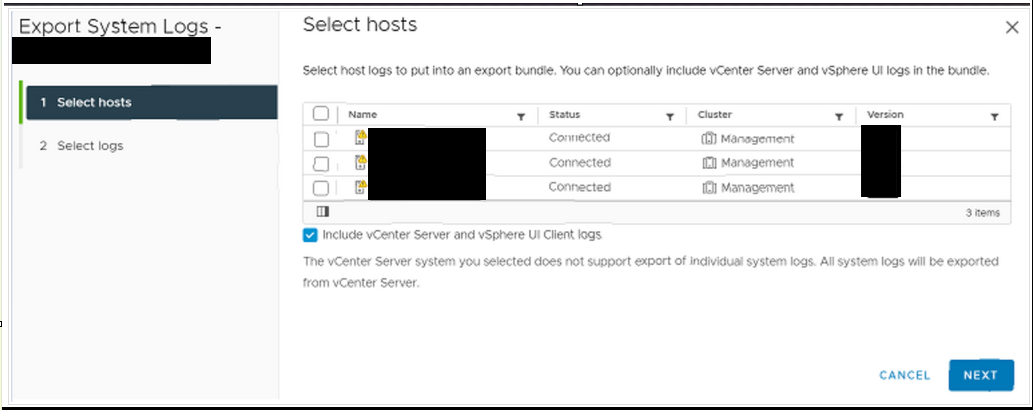
- Select the ESXi hosts for which logs are needed from.
- To collect diagnostic data for the vCenter Server itself, select the Include vCenter Server and vSphere UI Client logs option. This step is optional.
<br>
<br>
<br>
- Click the Next button.
- Select Gather performance data to include performance data information in the log files. This is optional and should only be selected if performance data a needed.
<br>
Note: As an option, update the duration and interval time for the data collection. Optionally, enter a password for encrypted core dumps.
- Click the EXPORT LOGS button to save the bundle to the local computer.
<br>
Note: The host or vCenter Server generates .zip bundles containing the log files. The Recent Tasks panel shows the Generate diagnostic bundles task in progress.
ESXi host console
- Running the
vm-support command in a console session on ESXi hosts.
- Running
vc-support in a console session on vCenter 6.0 or later using the command line.